Quick start
From zero to a working security key in about ten minutes.
This is experimental firmware with no security audit and no secure element. It’s fine for trying things out and for credentials you can afford to lose. See the threat model before using it for anything real.
flowchart TD
a["download rs-key-<version>-default.uf2<br/>(or build it yourself)"] --> c["hold BOOT, plug in"]
c --> d["flash: drag-and-drop or picotool load"]
d --> e["board reboots, enumerates over USB"]
e --> f["set PIN, enroll a passkey / ssh key"]
What you need
- An RP2350 board (tested: Waveshare RP2350-One; any RP2350 with USB works)
- A USB cable
That is the whole list. You only need a toolchain if you want to build the firmware yourself instead of downloading it.
No board yet? The emulator runs the
same applet code on your machine — enough to drive the protocol suites, and with
--display, to try the trusted screen’s Approve/Deny ceremony with a mouse.
0. Easy way: use the web flasher
Use the RS-Key Web Flasher for a guided browser flow. It can download, verify, sign, and flash the firmware.
Browser requirement: Flashing requires a desktop Chromium-based browser, such as Google Chrome or Microsoft Edge.
1. Get the firmware
Download the newest rs-key-<version>-default.uf2 from the
releases page. Take
2mb, 16mb or display instead if that is your board;
releases.md has the table of all fourteen images, the cosign
signature check, and the reproducibility check.
Every published image is a touch build: FIDO operations (registering, logging in) require a press of the presence button, BOOTSEL by default.
Or build it yourself
You need Nix with flakes enabled; the dev shell
provides the toolchain, picotool and the host tools. Without Nix: rustup +
rustup target add thumbv8m.main-none-eabihf + picotool ≥ 2.0, and the Python
deps from flake.nix.
nix develop                                  # first run downloads the toolchain
cargo build --release -p firmware
scripts/pt.sh target/thumbv8m.main-none-eabihf/release/firmware firmware-pt.elf
picotool uf2 convert firmware-pt.elf -t elf firmware.uf2
pt.sh embeds the partition table that keeps the USB bootloader out of the key’s
storage — cargo build cannot, since it is added after linking
(build.md). nix build .#firmware does it for
you.
Set PRESENCE_PIN=<gpio> for a dedicated presence button instead of BOOTSEL.
For a no-touch build (needed by the automated test suites, or if your board is
hard to reach) add --features no-touch. All build knobs: build.md.
2. Flash
To flash the firmware manually:
-
Hold the BOOT button while plugging the board in (or hold BOOT, tap RESET). A mass-storage drive named
RP2350appears. -
Flash it, either way (
firmware.uf2here is whichever.uf2you got in step 1):- Drag-and-drop:
cp firmware.uf2 /Volumes/RP2350/(macOS) or copy it to the mounted drive on Linux. - picotool (more reliable: it verifies and skips the mass-storage layer):
picotool load -v firmware.uf2 && picotool reboot.
The
RP2350drive is a fake FAT volume the bootrom emulates. It only understands the UF2 blocks written to it, not a real filesystem. On some machines the OS’s mass-storage layer breaks that (macOS resource-fork sidecar files and Spotlight, buffered or reordered writes, the board rebooting the instant the last block lands), so the copy errors or silently does nothing.picotool loadspeaks the bootrom’s PICOBOOT protocol directly, so reach for it whenever the drive never appears or the copy fails. - Drag-and-drop:
-
The board reboots itself and enumerates as
RS-Key Security Key. (The default build uses the project’s own USB identity, VID:PID0x1209:0x0001from pid.codes; the PC/SC reader name contains “RS-Key”. For a build that presents the YubiKey USB identity soykman/Yubico Authenticator auto-recognize it, build the opt-inVIDPID=Yubikey5flavor; see build.md.)
Check it (optional, needs the host tools from the dev shell or tools/):
rsk status        # FIDO getInfo + secure-boot + backup state, over USB
ykman info        # needs the opt-in VIDPID=Yubikey5 build: YubiKey 5A, firmware 5.8.0, 6 apps
On Linux, the CCID half (OpenPGP/PIV/OATH) needs pcscd + a polkit rule
first. See linux.md. FIDO works as soon as the udev rules are in
place.
Or from a GUI, with no terminal at all:
PicoForge (third-party, from the
librekeys project) shows the same state on one screen — identity and firmware
build, FIDO2 info, storage use, LED settings, boot mode — with sections for
passkeys, PIV, OpenPGP, OTP slots, the audit journal, backup, soft-lock and
attestation. It writes the same phy record rsk hw writes, over the interface
documented in
protocol.md §11. It is not part
of this repo and ships on its own schedule.
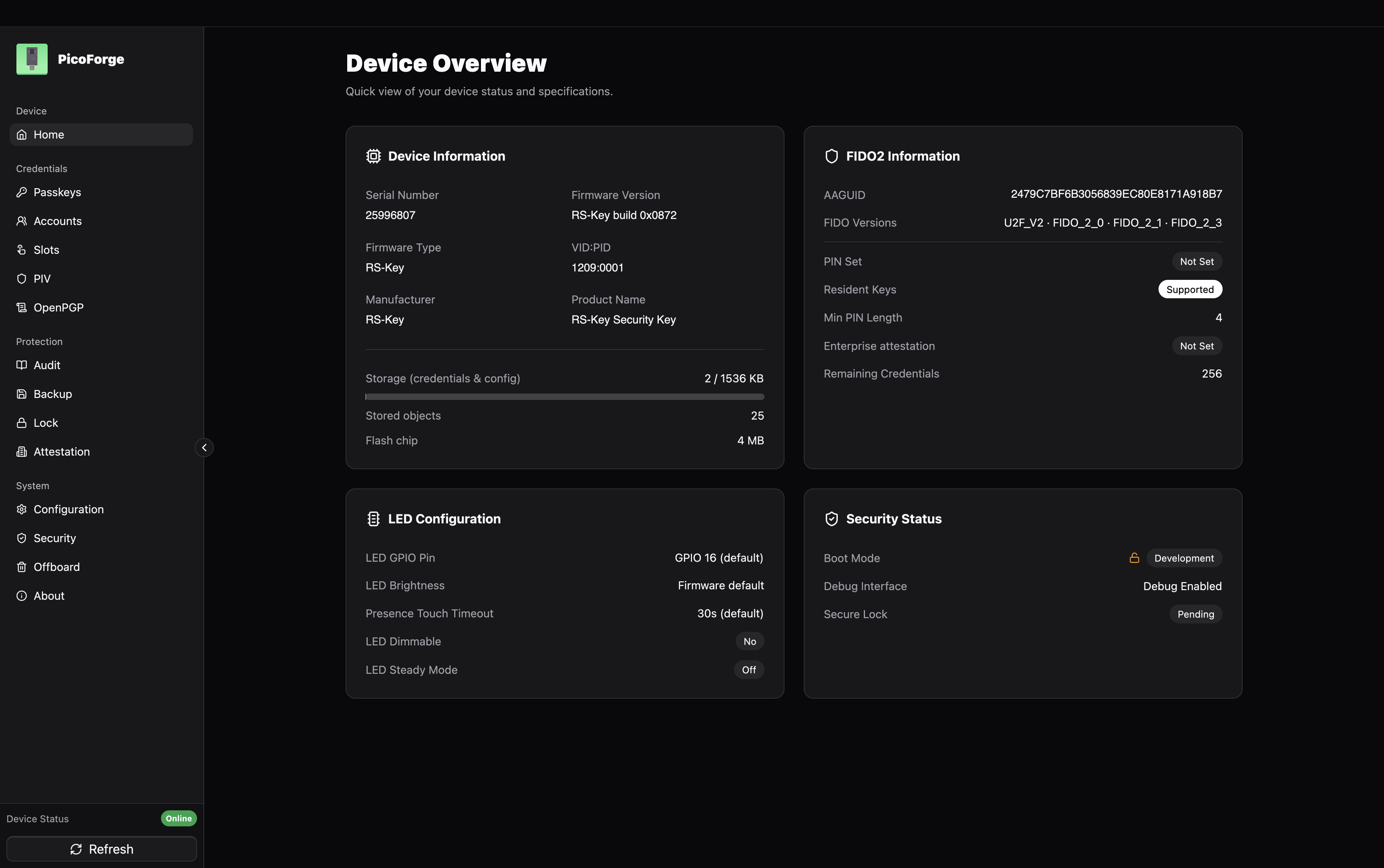
That is a board straight out of step 2, so the screen reads the way yours will:
the identity is the default 1209:0001, no PIN is set yet (that is step 3), and
the boot mode is still Development. production.md is what turns
the last one into a locked-down key — irreversibly, so read it first.
3. Set a PIN (recommended)
rsk fido set-pin
Without the host tools, your browser does the same job: it offers to set a PIN the first time you register a passkey.
Browsers and ssh-keygen will prompt for it when enrolling. 8 wrong attempts
lock the PIN until a reset. Standard security-key behaviour.
4. Enroll something
A passkey: go to any WebAuthn site (or https://webauthn.io to try), register a security key, touch the button when the LED asks.
An SSH key:
ssh-keygen -t ed25519-sk -f ~/.ssh/id_ed25519_sk    # touch twice, enter PIN
ssh-copy-id -i ~/.ssh/id_ed25519_sk you@server
ssh -i ~/.ssh/id_ed25519_sk you@server              # one touch to log in
The id_ed25519_sk file is a handle, not a key. It is useless without the
board. Copy it to other machines you ssh from.
macOS note: Apple’s
/usr/bin/sshhas no FIDO support. Use Homebrew OpenSSH (brew install openssh, then the absolute path/opt/homebrew/opt/openssh/bin/sshor put it first inPATH). Details: guides/ssh.md.
5. Back up your identity (optional but wise)
rsk backup export --scheme bip39          # 24 words, write them down
rsk backup finalize                       # seals the export window
The words recover your deterministic FIDO identity (ssh-sk logins, 2FA
registrations) onto a fresh board with rsk backup restore. Anyone who has the
words can recreate that identity on their own board, so store them like cash.
They do not cover resident passkeys, OpenPGP or PIV keys. See
guides/seed-backup.md.
Where next
- Feature guides: OpenPGP with gpg, PIV, OATH codes, OTP slots, soft-lock, LED colors
- production.md: fuse the master key into OTP + enable secure boot (irreversible, read first)
- threat-model.md: what this device protects against